
How to Compress Images Online and Download Smaller Files Without Losing Quality
Image compression is one of the easiest ways to make a website faster, reduce storage usage, and improve the overall performance of your media library. Large image files can slow down pages, take longer to upload, and create unnecessary strain on your server or hosting plan. A good image compressor helps solve that problem by reducing file size while keeping the image visually sharp and usable.
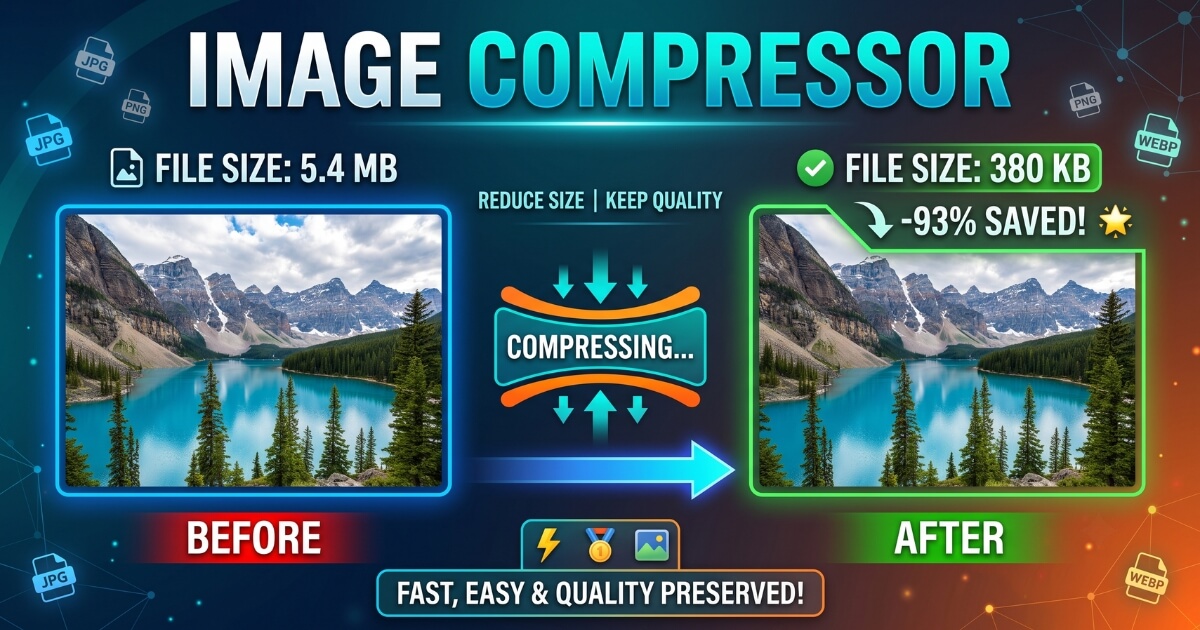
VONUC’s Image Compressor is built for users who want a simple and efficient way to upload images, compress them, convert them into different formats, and download the optimized result quickly. It supports multiple image types, batch processing, remote URL fetching, and flexible output options for everyday use.
| Format | Main Strength | Main Limitation | Best For |
|---|---|---|---|
| JPG | Smaller file size for photos | Lossy compression | Photographs, blog images, and web graphics |
| PNG | Lossless quality and transparency support | Larger file size | Logos, screenshots, icons, and graphics with text |
| WEBP | Modern balance of quality and compression | Not ideal for every workflow | Fast-loading websites and optimized media |
Why Compress Images?
Image compression is important because unoptimized images can slow down a website and make pages feel heavy. Even a few large files can affect load time, bandwidth usage, and user experience. Compressing images before publishing them helps keep your site light, clean, and easier to manage.
- Improve page speed: Smaller files load faster and make pages feel more responsive.
- Save storage space: Compressed images take up less room on your hosting account or media library.
- Reduce bandwidth usage: Smaller files consume less data when visitors open your pages.
- Make uploads easier: Lightweight images are simpler to manage in bulk.
- Support better SEO: Faster pages often create a better user experience, which can help performance overall.
How VONUC’s Image Compressor Works
VONUC’s Image Compressor is designed to keep the workflow simple. You can upload images directly from your device, fetch image files from a remote URL, process multiple files in one session, and download the compressed output after processing.
- Select files: Drag and drop your images into the upload area or click to browse files from your device.
- Preview: Review the selected images before starting compression.
- Choose output settings: Enable conversion and select your preferred format such as WEBP, JPG, PNG, or ALL.
- Compress: Start the process and let the tool handle each image one by one.
- Download: Save the compressed file or download all results when batch conversion is enabled.
- Reset and repeat: Clear the session and compress another set of images anytime.
This makes the tool useful for both one-time tasks and large batch workflows. If you are handling many images at once, the interface keeps things organized with previews, status updates, and download controls for each result.
Key Features of the VONUC Image Compressor
VONUC’s Image Compressor is built for speed, convenience, and flexibility. It gives users a clean workflow for compressing images without needing separate software or complicated editing tools.
| Feature | What It Does | Why It Helps |
|---|---|---|
| Drag & drop upload | Lets you drop images directly into the tool | Makes uploading fast and simple |
| Click-to-upload | Allows file selection from your device | Works well for mobile and desktop users |
| Single-image preview | Shows a clear preview before compression | Helps confirm the file before processing |
| Batch upload support | Handles multiple images in one session | Saves time when working with many files |
| Remote URL fetching | Imports images directly from image links | Useful when the file is already hosted online |
| Add another link | Lets you paste multiple image URLs one by one | Makes bulk link-based processing easier |
| Clipboard paste button | Pastes copied image links into the input instantly | Speeds up the workflow |
| Format conversion | Supports WEBP, JPG, PNG, and ALL | Gives more control over the final output |
| Progress indicator | Shows upload and processing status | Makes long jobs easier to follow |
| ZIP download | Packs multiple outputs into one ZIP file | Simplifies downloading many files at once |
| Reset / Compress Another | Starts a fresh session after completion | Useful for repeated use without refreshing the page |
Best Use Cases for Image Compression
Image compression is useful in many everyday workflows. Whether you run a website, manage content, or work with visual assets, reducing file size can make your process smoother and more efficient.
- Website optimization: Compress blog images, featured images, and gallery files before uploading them to WordPress.
- Content publishing: Prepare lightweight images for articles, landing pages, and social posts.
- Graphic design: Reduce export sizes while keeping images sharp enough for online use.
- Documentation and tutorials: Compress screenshots so they load quickly without losing readability.
- Bulk media management: Process many files at once to keep your media library organized and efficient.
JPG, PNG, or WEBP: Which Format Should You Use?
The best output format depends on the kind of image you are working with. Each format has its own strengths, and the right choice depends on whether you want the smallest file, the cleanest quality, or the most practical web performance.
| Use JPG When… | Use PNG When… | Use WEBP When… |
|---|---|---|
| You are compressing photos | You need transparency support | You want a modern web-friendly format |
| Smaller file size matters | You work with text or sharp edges | You want a good balance of size and quality |
| The image does not need transparency | You need crisp graphics or screenshots | You are optimizing a website for speed |
| You want wide compatibility | You want lossless output | You are preparing assets for online delivery |
How the Batch Conversion Experience Helps Users
Batch processing is one of the most useful parts of the Image Compressor. Instead of handling files one at a time, you can upload a group of images, watch the progress update as each file is processed, and download the optimized results when everything is ready.
- Helpful for bloggers preparing article images.
- Useful for designers compressing multiple visuals.
- Convenient for students, teachers, and documentation work.
- Time-saving for anyone dealing with a large set of images.
When multiple files are converted together, the ZIP option makes downloading much easier because all the output files are bundled into a single package.
About Remote URL Fetching
Sometimes your image is already hosted online and you do not want to download it manually first. That is where remote URL fetching becomes useful. You can paste a direct image link into the tool, fetch the file, and then continue with compression or conversion.
This is especially helpful when:
- you are working with hosted images from another source,
- you want to process a file without re-uploading it from your device,
- you need to handle multiple image links in one place.
Why PNG and WEBP Are Often Useful for Compression Work
PNG and WEBP are both popular in modern image workflows, but they serve different purposes. PNG is ideal when you need clean edges, sharp text, or transparency support. WEBP is often preferred for websites because it can keep file sizes low while still maintaining good visual quality.
| Situation | Better Choice |
|---|---|
| Logo or icon | PNG or WEBP |
| Screenshot or tutorial image | PNG |
| Blog photo | JPG or WEBP |
| Website optimization | WEBP |
| Transparent graphic | PNG |
Privacy and File Handling
Your files are handled through the tool workflow on your website, so the process is straightforward and user-friendly. That makes the compressor suitable for everyday image tasks, especially when you want a quick result without complicated editing software.
- Easy workflow: Upload, compress, and download from one interface.
- No complicated setup: Users can start using the tool right away.
- Supports repeat use: The reset option makes multiple sessions easy.
- Original files stay organized: You can compare input and output clearly.
Frequently Asked Questions About Image Compression
Many users have similar questions before compressing images. The answers below help explain how the process works and what to expect from the result.
1. Will compression improve a blurry image?
No. Compression reduces file size, but it does not magically fix a low-quality or blurry image.
2. Which format gives the smallest file size?
It depends on the image type, but WEBP often gives a strong balance of quality and compression for web use.
3. Can I compress multiple images at once?
Yes. The tool is designed to support batch processing and ZIP download for multiple outputs.
4. Can I fetch an image from a URL?
Yes. You can paste remote image links and import them directly into the compressor.
5. Do I need to install software?
No. The tool works from your website interface and does not require a separate desktop app.
Tips for Getting the Best Results
A few simple habits can help you get cleaner output and a smoother workflow when using an image compressor.
- Use WEBP for most website images when you want good quality with smaller file size.
- Use PNG for screenshots, logos, and graphics with sharp edges.
- Use JPG for photos when compatibility and compression are more important.
- Process batch files together to save time.
- Use the reset button when starting a new set of images.
Terms and Responsible Use
By using this tool, you agree to process only files you own or have permission to use. Do not compress, fetch, or convert content that violates copyright, privacy rights, or any applicable law.
Use the Image Compressor responsibly and make sure your workflow follows your own site policies, content rules, and publishing standards.
- Use the tool only for authorized files.
- Respect ownership and permission before processing any image.
- Review your content policies if the tool is published publicly.
- Choose the output format that best fits your use case.
Final Note
VONUC’s Image Compressor is built for users who want a fast, flexible, and easy way to reduce image file size while keeping the workflow simple. Whether you are uploading files from your device, fetching images from remote links, converting formats, or downloading a ZIP package after batch processing, the tool gives you a practical solution for everyday image optimization.
If you found this article helpful, follow us on Facebook. You can also connect with us on X (Twitter) and Instagram.